TL;DR
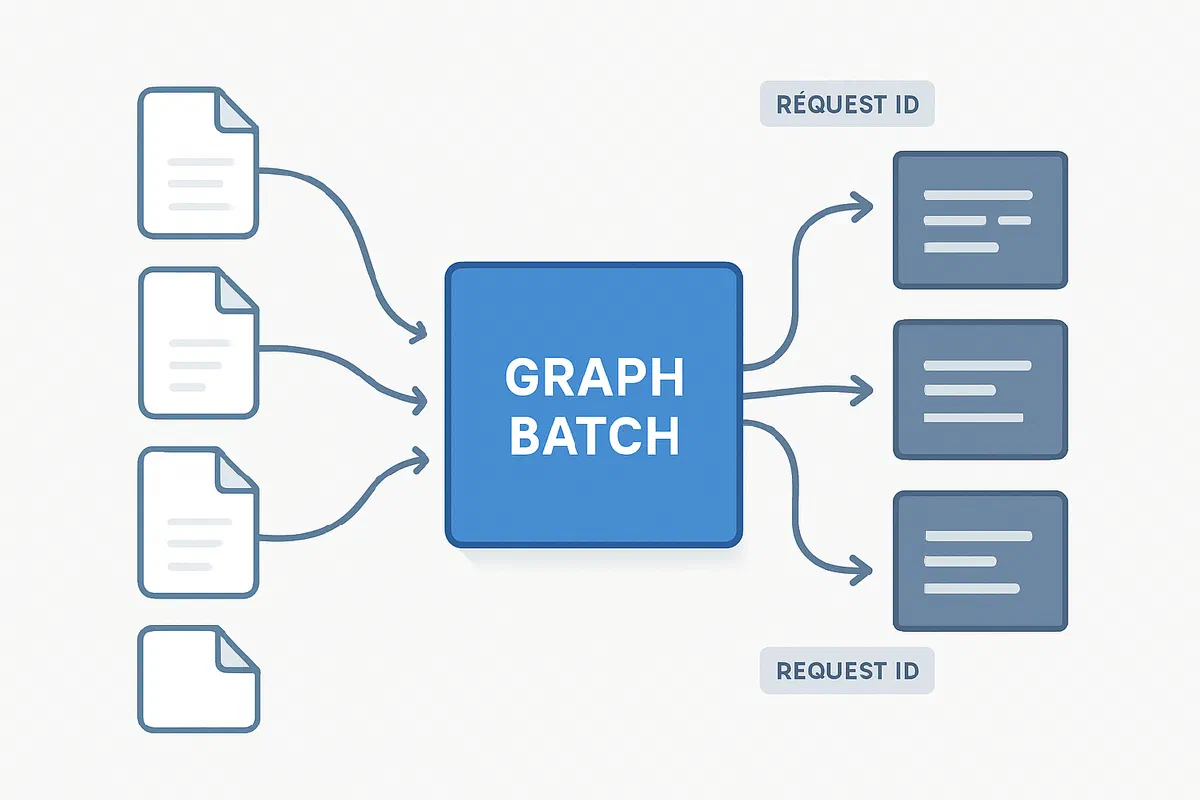
The Problem: Graph batch responses for file content are just raw bytes with no metadata - you can’t tell which response belongs to which original file request.
The Solution: Use a dictionary to map batch request IDs to your original file information:
// When building requests
string requestId = batchRequestContent.AddBatchRequestStep(...);
requestMapping[requestId] = fileInfo;

// When processing responses
FileInfoDTO originalFile = requestMapping[requestId];
Key Points:
- Handle both direct content (200 OK) and redirects (302) for large files
- Always dispose
HttpResponseMessage.Contentto prevent memory leaks - Batch limit is 20 requests - chunk larger batches
- Request IDs are unique per batch, not globally
Want the details? Keep reading! 👇
The Problem That’ll Drive You Crazy
Picture this: you need to download 50 files from SharePoint using Microsoft Graph. Being a good developer, you decide to use batching instead of making 50 individual API calls (because nobody wants to wait that long, and Microsoft’s throttling limits aren’t going anywhere).
You set up your batch request, send it off, and get your responses back. Great! Except… now you’re staring at a bunch of file content with absolutely no way to tell which file is which. 😅
Unlike other Graph operations that return nice JSON objects with IDs and metadata, file content responses are just raw bytes. No file name, no path, no ID - nothing to help you figure out which response belongs to which original request.
I learned this the hard way when I first tried Graph batching for file downloads. Spent way too much time trying to correlate responses by file size or content patterns before realizing there was a much cleaner solution.
The Mapping Solution (It’s Simpler Than You Think)
The trick is surprisingly straightforward: use the batch request ID as your bridge between the original file info and the response content. Every batch request gets a unique ID, and that same ID comes back with the response.
Here’s the game plan:
- Create a dictionary mapping request IDs to your original file information
- Build your batch requests and store the mappings
- Process responses using the request ID to look up the original file info
Let me show you exactly how this works.
Setting Up Your File Information
First, let’s create a simple model to hold our file details:
public class FileInfoDTO {
    public string? Path { get; set; }
    public string? Name { get; set; }
    public string? RelativePath { get; set; }
    public string? UniqueFileName { get; set; }
}
Nothing fancy here - just the basics we need to identify and process each file.
The Complete Batch Download Method
Here’s the full implementation. Don’t worry, I’ll break down the important parts afterward:
private async Task<Dictionary<string, byte[]>> DownloadFilesBatchAsync(
    FileInfoDTO[] fileInfos,
    string siteId,
    string driveId) {

    using BatchRequestContent batchRequestContent = new BatchRequestContent();
    Dictionary<string, FileInfoDTO> requestMapping = new Dictionary<string, FileInfoDTO>();
    Dictionary<string, byte[]> results = new Dictionary<string, byte[]>();

    // Build batch requests with mapping
    foreach (FileInfoDTO fileInfo in fileInfos) {
        if (string.IsNullOrEmpty(fileInfo.RelativePath) || string.IsNullOrEmpty(fileInfo.UniqueFileName))
            continue;

        string requestId = batchRequestContent.AddBatchRequestStep(
            GraphClient.Sites[siteId]
                      .Drives[driveId]
                      .Root
                      .ItemWithPath(fileInfo.RelativePath)
                      .Content
                      .Request());

        // This is the magic - storing the mapping!
        requestMapping[requestId] = fileInfo;
    }

    // Execute batch request
    BatchResponseContent batchResponse = await GraphClient.Batch.Request().PostAsync(batchRequestContent);
    Dictionary<string, HttpResponseMessage> responses = await batchResponse.GetResponsesAsync();

    // Process responses using our mapping
    foreach ((string requestId, HttpResponseMessage response) in responses) {
        FileInfoDTO originalFile = requestMapping[requestId]; // Look up the original file info

        try {
            switch (response.StatusCode) {
                case HttpStatusCode.OK:
                    byte[] content = await response.Content.ReadAsByteArrayAsync();
                    results[originalFile.UniqueFileName!] = content;
                    break;

                case HttpStatusCode.Redirect:
                    // Handle redirect for large files (more on this below)
                    byte[] redirectContent = await DownloadFromRedirectAsync(response.Headers.Location);
                    results[originalFile.UniqueFileName!] = redirectContent;
                    break;

                case HttpStatusCode.TooManyRequests:
                    // Handle throttling
                    throw new Exception($"Throttled request for {originalFile.Name}");

                default:
                    throw new Exception($"Failed to download {originalFile.Name}: {response.ReasonPhrase}");
            }
        }
        finally {
            // Always dispose - learned this one the hard way after some memory leak hunting
            response.Content.Dispose();
        }
    }

    return results;
}
The Key Parts Explained
The Mapping Dictionary
Dictionary<string, FileInfoDTO> requestMapping = new Dictionary<string, FileInfoDTO>();
This is your lifeline. For every request you add to the batch, you store the request ID and link it to your original file information. When responses come back, you can instantly look up which file each response belongs to.
Building Requests with Mapping
string requestId = batchRequestContent.AddBatchRequestStep(...);
requestMapping[requestId] = fileInfo;
The AddBatchRequestStep method returns a unique request ID. Store this immediately - you’ll need it to match responses later.
Handling the Redirect Curveball
Here’s something that caught me off guard initially: large files don’t return content directly. Instead, Graph gives you a redirect to an Azure Blob Storage URL where the actual file lives. Microsoft doesn’t specify the exact file size threshold, but in practice, I’ve observed this happening with files larger than a few MB.
private async Task<byte[]> DownloadFromRedirectAsync(Uri? redirectUri) {
    if (redirectUri == null)
        throw new ArgumentException("Redirect URI is null");

    using HttpClient httpClient = new HttpClient();
    return await httpClient.GetByteArrayAsync(redirectUri);
}
This happens because Microsoft doesn’t want to push huge files through the Graph API unnecessarily. The redirect URL is temporary and works great - just make sure you handle it properly.
Note: The exact file size that triggers a redirect isn’t officially documented by Microsoft, so always handle both direct content (200 OK) and redirect (302) responses in your code.
Error Handling That Actually Helps
When things go wrong (and they will), you want meaningful error messages. Here’s how to handle the common scenarios:
private async Task ProcessBatchResponseAsync(
    string requestId,
    HttpResponseMessage response,
    FileInfoDTO originalFile,
    Dictionary<string, byte[]> results) {

    try {
        switch (response.StatusCode) {
            case HttpStatusCode.OK:
                byte[] content = await response.Content.ReadAsByteArrayAsync();
                results[originalFile.UniqueFileName!] = content;
                break;

            case HttpStatusCode.Redirect:
            case HttpStatusCode.Found:
                byte[] redirectContent = await DownloadFromRedirectAsync(response.Headers.Location);
                results[originalFile.UniqueFileName!] = redirectContent;
                break;

            case HttpStatusCode.NotFound:
                Console.WriteLine($"File not found: {originalFile.Name} at {originalFile.RelativePath}");
                // Maybe the file was moved or deleted
                break;

            case HttpStatusCode.TooManyRequests:
                Console.WriteLine($"Throttled request for: {originalFile.Name}");
                // This is where retry logic would go (coming in the next post!)
                break;

            case HttpStatusCode.Forbidden:
                Console.WriteLine($"Access denied for: {originalFile.Name}");
                // Check your permissions
                break;

            default:
                Console.WriteLine($"Unexpected error downloading {originalFile.Name}: {response.StatusCode} - {response.ReasonPhrase}");
                break;
        }
    }
    finally {
        response.Content?.Dispose(); // Don't leak memory!
    }
}
Important Things to Remember
Batch Size Limits
Graph batching has a hard limit of 20 requests per batch. If you have more files, you’ll need to chunk them:
const int BATCH_SIZE = 20;
for (int i = 0; i < fileInfos.Length; i += BATCH_SIZE) {
    var batch = fileInfos.Skip(i).Take(BATCH_SIZE).ToArray();
    var batchResults = await DownloadFilesBatchAsync(batch, siteId, driveId);
    // Merge results...
}
Memory Management
Always dispose of HttpResponseMessage.Content. File downloads can be large, and forgetting to dispose will cause memory leaks that are painful to debug.
Request ID Uniqueness
Request IDs are unique within a single batch, but not across different batches. Don’t try to reuse mappings between different batch operations.
Why This Pattern Works So Well
This approach has several advantages that make it my go-to solution:
- Dead Simple: No complex logic, just a straightforward mapping pattern
- Reliable: Works consistently regardless of file sizes or response order
- Memory Efficient: Proper cleanup prevents memory leaks
- Debuggable: Easy to trace issues when something goes wrong
- Extensible: Perfect foundation for adding retry logic later
The beauty is in its simplicity. You’re not trying to guess which response belongs to which request - you know exactly because you mapped it from the start.
What’s Next?
This mapping pattern solves the core problem of correlating Graph batch responses with your original requests. But what happens when some requests fail due to throttling or temporary errors?
In my next post, I’ll show you how to build retry logic on top of this foundation that automatically handles failed requests without losing track of which files still need to be downloaded.
Have you run into this mapping challenge before? Let me know in the comments how you solved it - I’m always curious about different approaches! 🚀
References