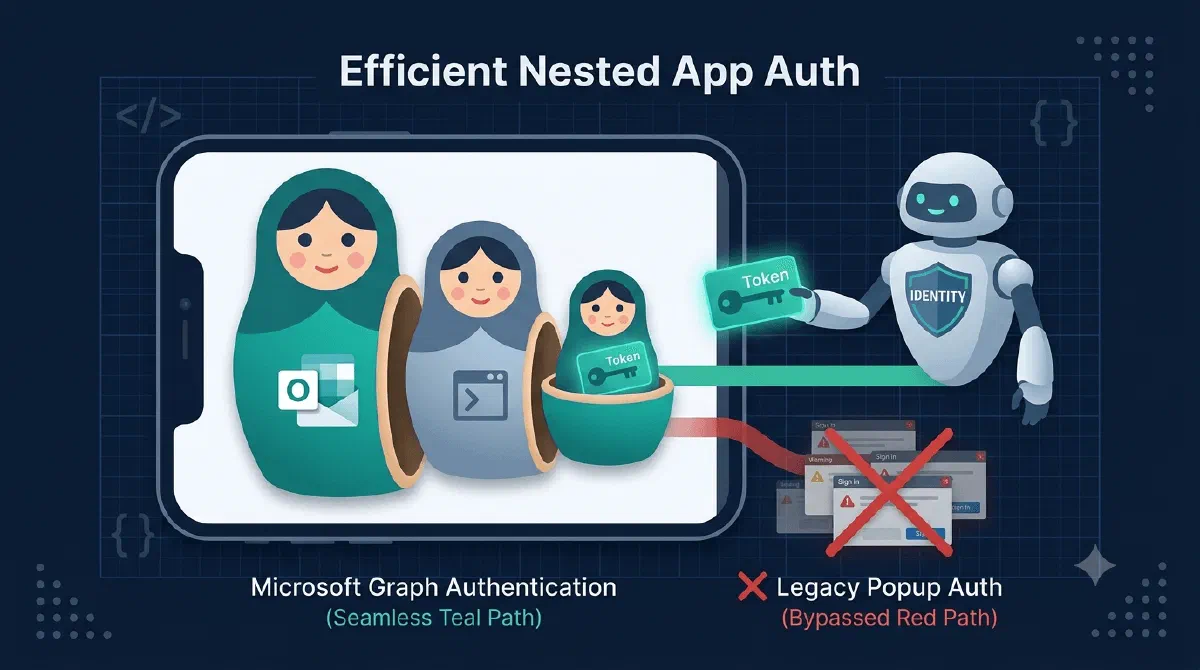
This is the third post in what accidentally became a trilogy about getting my Outlook add-in to work on mobile. Post one made the add-in visible on the phone. Post two made it functional by falling back to a Microsoft Graph call when getAsFileAsync wasn’t there.
And in that second post I wrote one very casual line: “The token comes from MSAL.”
Yeah. About that.
On desktop, MSAL gets a token by opening a browser popup where the user signs in. On mobile there is no browser. Your add-in runs in a WebView inside the Outlook app. There’s no window to pop, no tab to redirect, nowhere for the classic OAuth dance to happen. My first attempt at calling Graph from the phone died right there, not on the API call, on the sign-in before it.
The fix has a name: Nested App Auth (NAA).
TL;DR
Your add-in is an app nested inside another app (Outlook), so let the outer app handle authentication. NAA makes Outlook act as an auth broker for your add-in: you setsupportsNestedAppAuth: true in the MSAL config, create the client with createNestablePublicClientApplication, and add one strange-looking redirect URI (brk-multihub://your-domain) to your Azure app registration. When interaction is needed on mobile, sign-in goes through the Microsoft Authenticator app instead of a browser popup.Why Normal MSAL Dies on Mobile
The standard MSAL flows (loginPopup, loginRedirect) both assume your code lives in a browser. A popup needs window.open. A redirect needs the page to navigate away to login.microsoftonline.com and come back with your app still knowing what it was doing.
Inside Outlook on iOS or Android, neither is true. You’re in a WKWebView (or the Android equivalent) that Outlook controls. window.open goes nowhere useful, and a redirect would navigate the task pane itself into oblivion.
But think about what’s around your WebView: the Outlook app. A fully signed-in, Microsoft-identity-aware native app that already knows exactly who the user is. NAA is the mechanism that lets your nested add-in say “hey host, you handle the identity stuff” and get tokens brokered through Outlook itself. When silent brokering isn’t enough, the host hands off to Microsoft Authenticator for the interactive part, a real native auth experience instead of a popup that can’t exist.
The Azure Part: One Weird Redirect URI
Before any code, your Entra app registration needs to opt in to being brokered. That’s done with a redirect URI of type Single-page application in this format:
brk-multihub://your-add-in-domain.com
Origin only, no subpaths:
- ✅
brk-multihub://contoso.com - ✅
brk-multihub://localhost:3000(for dev) - ❌
brk-multihub://contoso.com/taskpane
This URI is you telling the Microsoft identity platform: “I consent to having my auth brokered by trusted Microsoft 365 hosts.” The multihub part means it’s not just Outlook, the same registration works when your add-in runs brokered inside Word, Excel, PowerPoint, or Teams.
One extra note if your add-in also runs in Word/Excel/PowerPoint on the web: those need an additional plain SPA redirect URI pointing at the actual page that requests tokens (your taskpane HTML), because the browser there still uses a standard flow.
The MSAL Part: One Config, Two Worlds
Here’s the neat thing about how NAA lands in code: you don’t write a mobile version and a desktop version. You write one init function and let it fall back.
import {
  createNestablePublicClientApplication,
  PublicClientApplication,
  type IPublicClientApplication,
  type Configuration,
} from "@azure/msal-browser";

let isNAAMode = false;

async function initMsal(): Promise<IPublicClientApplication> {
  const msalConfig: Configuration = {
    auth: {
      authority: "https://login.microsoftonline.com/common",
      clientId: clientId,
      supportsNestedAppAuth: true,
    },
  };

  try {
    const app = await createNestablePublicClientApplication(msalConfig);
    isNAAMode = true;
    return app;
  } catch {
    // NAA unavailable - fall back to standard MSAL
    isNAAMode = false;
    const app = new PublicClientApplication(msalConfig);
    await app.initialize();
    return app;
  }
}
What’s happening here?
supportsNestedAppAuth: trueflags the config as NAA-capable. Without it, nothing brokers.createNestablePublicClientApplicationtries to hook into the host’s broker. Inside Outlook mobile, it succeeds. In a plain browser tab or an older host, it throws.- The
catchis the desktop path. Same fallback philosophy as the Graph post: don’t ask “am I on mobile?”, try the capability and let the failure route you. One codebase, two auth worlds, zero platform sniffing. - Small but important: initialize this lazily, after
Office.onReady()has resolved. The broker hookup needs the Office context to actually be there.
Getting a Token: Let the Host Do the Remembering
In classic MSAL you manage accounts yourself: call getAllAccounts(), pick one, pass it to acquireTokenSilent. In NAA mode you don’t have to, the broker owns the accounts. You just give it a hint about who you expect:
function getLoginHint(): string | undefined {
  return Office.context?.mailbox?.userProfile?.emailAddress ?? undefined;
}

async function getToken(scopes: string[]): Promise<string> {
  const app = await getMsalInstance();

  if (isNAAMode) {
    try {
      const result = await app.acquireTokenSilent({
        scopes,
        loginHint: getLoginHint(),
      });
      return result.accessToken;
    } catch {
      // Silent failed - interactive fallback
    }

    // On mobile this doesn't open a browser popup -
    // the host hands off to the Microsoft Authenticator app
    const result = await app.acquireTokenPopup({ scopes });
    return result.accessToken;
  }

  // Non-NAA (desktop/web): the classic dance -
  // getAllAccounts() → acquireTokenSilent(account) → popup on interaction_required
  return getTokenClassic(app, scopes);
}
What’s happening here?
- The
loginHintis just the signed-in mailbox owner’s email, straight fromOffice.context.mailbox.userProfile. The broker uses it to resolve the right account, which is exactly the account the user is already signed into Outlook with. No account picker, no cache management. acquireTokenSilentwith that hint succeeds almost every time, because of course it does, the user is signed in, that’s how they’re reading their email.- When interaction is genuinely needed (first consent, revoked session),
acquireTokenPopupdoesn’t open a popup on mobile despite its name. The host routes it to Microsoft Authenticator, and the user gets a native sign-in experience that actually works on a phone. - The non-NAA branch keeps doing what MSAL apps have always done on desktop. Two branches in one function, and the caller just says
getToken(scopes)and never knows which world it’s in.
The first time I watched the Authenticator app slide up over Outlook, approve, and slide away with my Graph call succeeding behind it, it felt like cheating. In a good way. 🎉
Gotchas I Hit Along the Way
- The redirect URI must be SPA type. Adding
brk-multihub://...under “Web” or “Mobile and desktop applications” in the app registration silently doesn’t work. It goes under Single-page application, even though nothing about it looks like a page. - Origin only.
brk-multihub://contoso.com/taskpanefails validation. Trim it to the origin. - MSAL.js v3+.
createNestablePublicClientApplicationdoesn’t exist in v2. Check your@azure/msal-browserversion before you spend an hour on confusing import errors. - No B2C. NAA supports Microsoft accounts and Entra ID work/school accounts. If you’re on Azure AD B2C, this door is closed.
Wrapping Up
That’s the trilogy done. Three posts, one theme: on mobile you don’t get to demand things, you get to ask and adapt.
- The manifest post got us in the door: declare a low requirement floor so mobile shows the add-in at all.
- The Graph fallback post got us the bytes: when the Office.js API isn’t there, fetch the same email from Graph.
- This post got us the token: when there’s no browser to pop, let Outlook broker the auth and Authenticator handle the interaction.
Same shape every time: try the capability, catch the failure, take the other road. Mobile support isn’t one big feature, it’s a stack of small fallbacks that each pretend nothing happened.
References