TL;DR
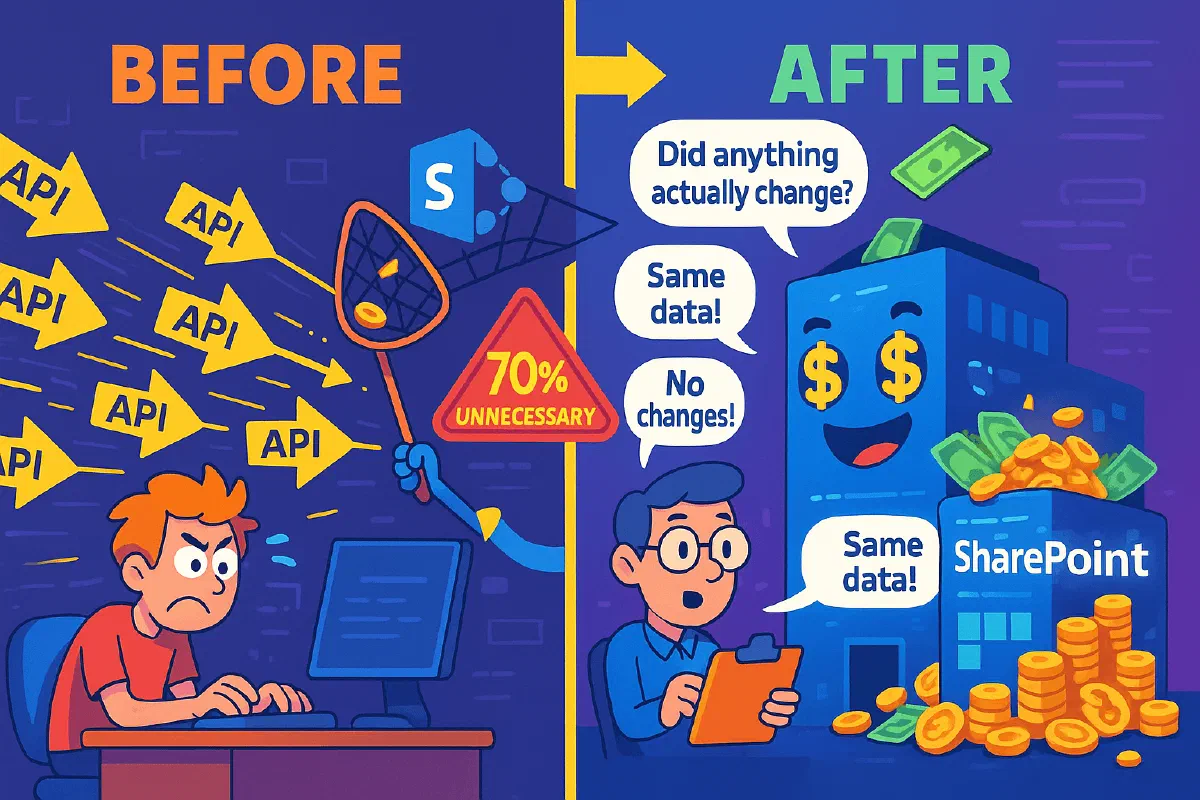
Problem: I was building an API that was blindly updating SharePoint list items, even when users didn’t actually change anything. Classic “save happy” user behavior was triggering thousands of pointless API calls.
Solution: Built smart field change detection that asks “what actually changed?” before hitting SharePoint with update operations.
Impact: 70% reduction in API calls for a typical user workflow, plus way less throttling headaches and happier “Service prioritization in SharePoint” bills.
The Magic:
var differences = GetDifferences(listItem, newValues, treatEmptyStringAsNull: true);
if (differences.Any())
{
    // Only update if something actually changed
    foreach (var (fieldName, newValue) in differences)
    {
        listItem[fieldName] = newValue;
    }
    listItem.Update();
    clientContext.ExecuteQuery();
}
// Otherwise? Do absolutely nothing. Your API calls will thank you.
The Moment Everything Clicked
So there I was, building what I thought was a pretty straightforward API endpoint. Users fill out a form, click save, and boom—SharePoint list item gets updated. Simple, right?
Wrong.
It was during one of those routine maintenance windows when I decided to review some API logs that I noticed something odd. The numbers just didn’t add up. We were making way more SharePoint API calls than seemed necessary for the amount of actual data changes happening in the system.
Every operation was hitting SharePoint. Even when nothing had actually changed.
That’s when it hit me. Our application was treating every potential update as an actual update, regardless of whether the data was different from what SharePoint already had. Users could open a form, change nothing, click save, and we’d still fire off an API call to “update” the item with identical values.
But SharePoint doesn’t care if you’re setting a field to the exact same value it already has. It still counts that as an API call. It still hits your throttling limits. And if you’re paying for “Service Prioritization in SharePoint”? It still costs you money.
The “Why Did I Even Build This?” Moment
I spent some time digging deeper into the patterns, and the numbers were… enlightening.
This wasn’t just a user behavior issue. It was happening everywhere:
- Users frequently save forms without making actual changes
- Automated processes periodically “sync” data that’s already current
- Applications send complete object states rather than just changed fields
- Integration systems perform routine updates as part of larger workflows
When I looked at a typical day’s worth of operations, I found that roughly 70% of our SharePoint update calls weren’t actually changing anything. We were essentially paying SharePoint to accept identical data and politely say “thanks for the update!”
The more I thought about it, the more I realized this pattern was probably happening in systems everywhere. How many developers have built the same “just update everything” approach without stopping to ask whether anything actually changed?
SharePoint’s “Sure, I’ll Take Your Money” Attitude
Here’s the thing about SharePoint’s CSOM that nobody really talks about: it doesn’t care if you’re being wasteful. You want to set a field to the exact same value it already has? “No problem!” says SharePoint. “That’ll be one API call, please.”
And if you’re using Service Prioritization in SharePoint? That’s real money walking out the door.
Let me show you what I mean with some concrete numbers from a client I worked with recently:
The Head-Scratching Cases
// These should be considered equal, but .NET says "nope"
currentValue: "John Doe"
newValue: "John Doe"  // Easy case, no problem here

currentValue: null
newValue: ""  // Is empty string the same as null? Your call!

currentValue: 42
newValue: "42"  // Different types, same value. Fun times.
The SharePoint Special Cases
// User fields (oh boy...)
currentValue: FieldUserValue { LookupId = 15, LookupValue = "John Doe" }
newValue: FieldUserValue { LookupId = 15, LookupValue = "John Doe" }

// Multi-choice fields that hate you
currentValue: ["Option A", "Option C", "Option B"]
newValue: ["Option B", "Option A", "Option C"]  // Same options, different order

// Taxonomy fields (because why not make it complicated?)
currentValue: TaxonomyFieldValue { TermGuid = "abc-123", Label = "Technology" }
newValue: TaxonomyFieldValue { TermGuid = "abc-123", Label = "Technology" }
After an hour of testing different scenarios, I realized I needed something more sophisticated than oldValue == newValue.
Building the “Actually Smart” Comparison Engine
Alright, time to get serious. I needed a comparison function that could handle all of SharePoint’s quirky field types and still be fast enough to not slow down my API.
Here’s what I ended up building (and yes, it’s a bit of a beast):
internal static List<(string InternalName, object? NewValue)> GetDifferences(
    ListItem item,
    IDictionary<string, object?> newValues,
    bool treatEmptyStringAsNull)
{
    var diffs = new List<(string, object?)>();

    foreach (var kvp in newValues)
    {
        var name = kvp.Key;
        var newVal = kvp.Value;

        object? currentVal = null;
        if (item.FieldValues != null && item.FieldValues.TryGetValue(name, out var cv))
        {
            currentVal = cv;
        }

        if (!ValuesEqual(currentVal, newVal, treatEmptyStringAsNull))
        {
            diffs.Add((name, newVal));
        }
    }

    return diffs;
}

private static bool ValuesEqual(object? a, object? b, bool treatEmptyStringAsNull)
{
    if (ReferenceEquals(a, b))
    {
        return true;
    }

    if (a is null || b is null)
    {
        if (treatEmptyStringAsNull)
        {
            if ((a is null && IsEmptyStringLike(b)) || (b is null && IsEmptyStringLike(a)))
            {
                return true;
            }
        }
        return false;
    }

    a = Normalize(a, treatEmptyStringAsNull);
    b = Normalize(b, treatEmptyStringAsNull);

    if (a is IStructuralEquatable seA && b is IStructuralEquatable seB)
    {
        return StructuralComparisons.StructuralEqualityComparer.Equals(seA, seB);
    }

    return Equals(a, b);
}

private static bool IsEmptyStringLike(object? x)
{
    return x is string s && string.IsNullOrWhiteSpace(s);
}

private static object? Normalize(object? v, bool treatEmptyStringAsNull)
{
    if (v == null)
    {
        return null;
    }

    switch (v)
    {
        case string s:
            return (treatEmptyStringAsNull && string.IsNullOrWhiteSpace(s)) ? null : s;

        case bool b:
            return b;

        case byte or sbyte or short or ushort or int or uint or long or ulong or float or double or decimal:
            return Convert.ToDecimal(v, CultureInfo.InvariantCulture);

        case DateTime dt:
            var utc = (dt.Kind == DateTimeKind.Utc ? dt : DateTime.SpecifyKind(dt, DateTimeKind.Unspecified)).ToUniversalTime();
            return new DateTime(utc.Year, utc.Month, utc.Day, utc.Hour, utc.Minute, utc.Second, DateTimeKind.Utc);

        case FieldUserValue u:
            return u.LookupId;

        case FieldLookupValue l:
            return l.LookupId;

        case IEnumerable<FieldLookupValue> multiLookup:
            return multiLookup.Select(x => x?.LookupId ?? 0).OrderBy(x => x).ToArray();

        case TaxonomyFieldValue tx:
            return tx.TermGuid?.Trim().ToLowerInvariant();

        case TaxonomyFieldValueCollection txc:
            return txc
                .Where(x => x != null && !string.IsNullOrEmpty(x.TermGuid))
                .Select(x => x.TermGuid.Trim().ToLowerInvariant())
                .OrderBy(g => g)
                .ToArray();

        case FieldGeolocationValue geo:
            return new ValueTuple<double, double, double, double>(
                Math.Round(geo.Latitude, 6),
                Math.Round(geo.Longitude, 6),
                Math.Round(geo.Altitude, 2),
                Math.Round(geo.Measure, 2));

        case string[] ss:
            return ss
                .Select(x => treatEmptyStringAsNull && string.IsNullOrWhiteSpace(x) ? null : x)
                .OrderBy(x => x, StringComparer.Ordinal)
                .ToArray();

        case IEnumerable enumerable when v is not string:
        {
            var list = new List<object?>();
            foreach (var e in enumerable)
            {
                list.Add(Normalize(e, treatEmptyStringAsNull));
            }
            return list.ToArray();
        }

        default:
            return v;
    }
}
The Magic Behind the Scenes
1. The Normalization Dance
The Normalize method is where the real magic happens. It takes SharePoint’s various field types and converts them into something we can actually compare:
- Numbers: Everything becomes a
decimalbecause SharePoint loves to mix integers and strings - DateTime: Converted to UTC and truncated to seconds (because who needs millisecond precision for list items?)
- User/Lookup Fields: We only care about the
LookupId, not the display text that might change - Collections: Sorted alphabetically because SharePoint doesn’t guarantee order
- Strings: Can optionally treat empty/whitespace as null (trust me, you want this)
2. The “It’s Not You, It’s SharePoint” Handling
For arrays and complex objects, I use IStructuralEquatable to do deep comparisons. Because yes, SharePoint will absolutely give you arrays that contain the same items but in different orders.
3. The Business Logic Escape Hatch
The treatEmptyStringAsNull parameter saved my sanity. Different parts of your application might handle empty values differently, and this lets you define your own rules for what counts as “unchanged.”
But Wait, Why Not Just Use JSON Comparison?
Before you ask (because I know you’re thinking it): “Why build this elaborate comparison engine when you could just serialize both objects to JSON and compare the strings?”
Great question. I actually thought the same thing initially. How hard could it be, right? Just JsonSerializer.Serialize() both the old and new values, compare the resulting strings, and call it a day.
Here’s what the “simple” JSON approach looks like:
internal static List<(string InternalName, object? NewValue)> GetDifferencesJson(
    IDictionary<string, object?> oldValues,
    IDictionary<string, object?> newValues,
    bool treatEmptyStringAsNull)
{
    var diffs = new List<(string, object?)>();

    foreach (var kvp in newValues)
    {
        var name = kvp.Key;
        var newVal = kvp.Value;

        object? currentVal = null;
        oldValues?.TryGetValue(name, out currentVal);

        var newJson = JsonSerializer.Serialize(newVal);
        var oldJson = JsonSerializer.Serialize(currentVal);

        if (newJson != oldJson)
        {
            diffs.Add((name, newVal));
        }
    }

    return diffs;
}
Looks clean and simple, right? That’s what I thought too. So I built both approaches and put them head-to-head with BenchmarkDotNet. The results were… eye-opening.
The Performance Reality Check
Here’s what I found when comparing the performance of my custom approach versus JSON string comparison:
Single List Item Comparison:
- Custom Dictionary Approach: 749,625 operations/second (1.334 μs per operation)
- JSON String Approach: 201,109 operations/second (4.972 μs per operation)
- Performance difference: 3.7x faster with the custom approach
Batch Operations (300 items):
- Custom Dictionary Approach: 3,705 operations/second (269.91 μs per batch)
- JSON String Approach: 712 operations/second (1,404.06 μs per batch)
- Performance difference: 5.2x faster with the custom approach
Why JSON Comparison Falls Short
The numbers tell the story, but here’s what’s actually happening under the hood:
- Serialization Overhead: Converting SharePoint field values to JSON strings requires multiple allocations and string operations
- Memory Pressure: JSON approach allocated nearly 50% more memory (4.67KB vs 3.17KB per operation)
- Type Conversion Issues: JSON serialization doesn’t handle SharePoint’s quirky field types the way we need
- Garbage Collection: More allocations = more GC pressure = slower overall performance
When you’re processing hundreds or thousands of list items in batch operations, that 3-5x performance difference really adds up. Plus, the custom approach gives us complete control over how different field types are compared, which JSON comparison simply can’t provide.
Putting It All Together: The Real-World Implementation
Here’s how I actually use this in my APIs:
public async Task<bool> UpdateListItemAsync(int itemId, Dictionary<string, object?> newValues)
{
    var clientContext = GetClientContext();
    var list = clientContext.Web.Lists.GetByTitle("YourList");
    var listItem = list.GetItemById(itemId);

    clientContext.Load(listItem);
    clientContext.ExecuteQuery();

    // The moment of truth - what actually changed?
    var differences = GetDifferences(listItem, newValues, treatEmptyStringAsNull: true);

    if (!differences.Any())
    {
        // Nothing changed! Skip the update entirely
        return false; // "Thanks for playing, but you didn't actually change anything"
    }

    // Only update the fields that actually changed
    foreach (var (fieldName, newValue) in differences)
    {
        listItem[fieldName] = newValue;
    }

    listItem.Update();
    clientContext.ExecuteQuery();

    return true; // "Something actually happened!"
}
The Numbers Don’t Lie (And They’re Pretty Great)
After implementing this change detection across our applications, here’s what we typically see:
Before implementing change detection:
- Applications making thousands of update requests per day
- Every single one triggered a SharePoint
ExecuteQuery() - High API call volumes and occasional throttling issues
After implementing change detection:
- Same number of update requests from users/systems
- 60-80% contained no actual changes and were skipped
- Dramatically reduced SharePoint API consumption
- Much lower throttling risk
The typical impact:
- Significant reduction in monthly API calls
- Cost savings with Service Prioritization in SharePoint (varies by usage)
- Reduced throttling risk during busy periods
- Faster API responses because skipped operations are basically instant
But here’s what really matters: the performance improvement isn’t just about the numbers. Users notice when applications feel more responsive, and developers notice when they stop getting throttling alerts.
The Gotchas (Because There Are Always Gotchas)
When This Approach Might Not Be For You
Audit Requirements: If you need to log every single “save” action regardless of whether anything changed, this might not work for your use case.
Always Update Timestamps: Some business requirements dictate that “LastModified” should always be updated when a user clicks save, even if the content is identical.
Super Simple Scenarios: If you’re only updating one field and it’s a simple string comparison, the overhead of this elaborate comparison might not be worth it.
The SharePoint Field Types That Made Me Question My Life Choices
Some field types need special handling:
// Calculated fields - don't even try to update these
if (field.ReadOnlyField || field.FieldTypeKind == FieldType.Calculated)
{
    continue; // SharePoint will just ignore you anyway
}

// Attachment fields - these need completely different logic
if (field.FieldTypeKind == FieldType.Attachments)
{
    // Handle separately - attachments are their own special nightmare
    continue;
}
Wrapping Up (And Why This Matters More Than You Think)
Look, I know this might seem like over-engineering for a simple “update SharePoint item” operation. But here’s the thing: those small inefficiencies add up fast.
In my case, this one change:
- Improved user experience with faster response times
- Reduced throttling headaches during busy periods
- Made me feel like a responsible developer (this one’s important too!)
The pattern I’ve shown you isn’t just about SharePoint or just about API optimization. It’s about asking the fundamental question: “Is this operation actually necessary?”
That question has made me a better developer across all the platforms I work with, not just SharePoint.
So next time you’re building any kind of update operation—whether it’s SharePoint, a database, or that JSON file you’re definitely not using as a database—pause for a moment and ask: “Did anything actually change?”
Your future self (and your API bills) will thank you.
Pro tip: Start implementing this pattern on your highest-traffic endpoints first. That’s where you’ll see the biggest impact, and it’ll give you the confidence to roll it out everywhere else.
Now go forth and eliminate those unnecessary API calls. Your SharePoint environment will purr like a happy cat.
Change detection is one of five techniques in The SharePoint CSOM Performance Playbook. If you want the whole picture of where CSOM calls leak, start there.