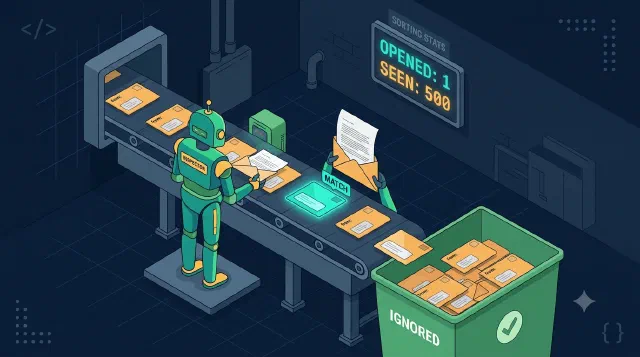
Filter Before You Fetch: Graph Mail Notifications That Carry Their Own Metadata
Learn how to use Microsoft Graph rich notifications with $select to decide from the webhook payload whether a mail is worth fetching, without an extra API call.
Outlook add-ins that survive mobile: requirement sets that lie about their version, Nested App Auth without a popup, and falling back to Microsoft Graph.
This is the most differentiated material on the blog, mostly because almost nobody else has written it down. Outlook add-ins on desktop are well documented. Outlook add-ins on mobile are a different product wearing the same name.
The pattern in every post here is the same discovery: something the documentation says is available reports itself as available, and then fails. Requirement sets that overstate what the host supports. Authentication that assumes a popup window on a device that has none. Item properties that are simply absent, so you fall back to Microsoft Graph for the same message. A per-app folder in every user’s OneDrive that nobody mentions but everyone can use for settings.
If you are debugging one of these, the open GitHub issues are currently better reading than the docs. That is the gap these posts are trying to close.
Learn how to use Microsoft Graph rich notifications with $select to decide from the webhook payload whether a mail is worth fetching, without an extra API call.
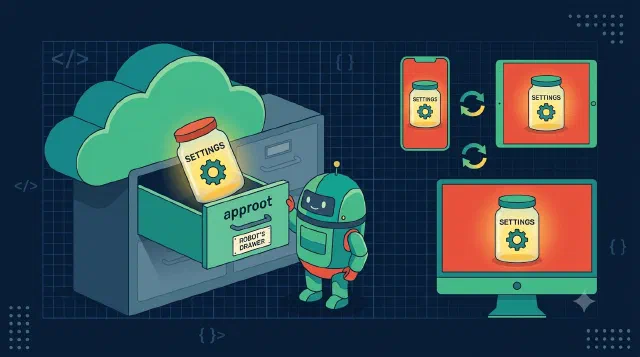
Learn how to store Outlook add-in user preferences in the OneDrive App Folder via the Graph approot endpoint, so settings roam across every device.
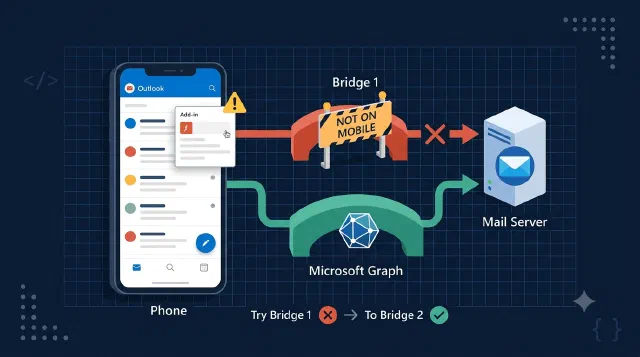
Learn how to fall back to the Microsoft Graph MIME endpoint when getAsFileAsync isn't available in Outlook on mobile, so your add-in keeps working everywhere.
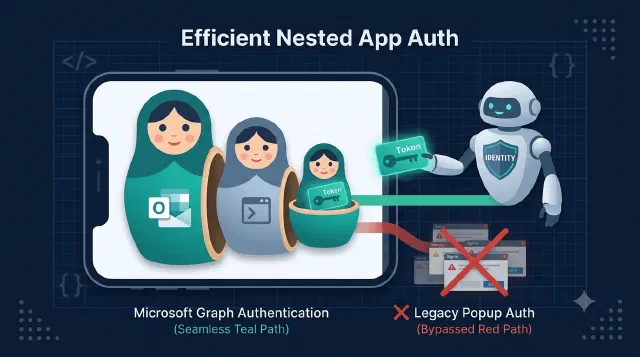
Learn how to get MSAL tokens inside Outlook on mobile with Nested App Auth (NAA), from the brk-multihub redirect URI to acquireTokenSilent with a loginHint.
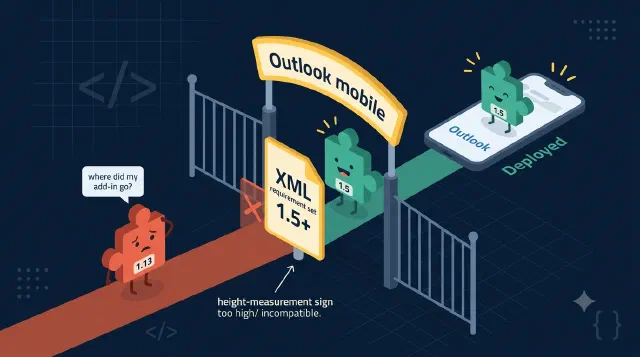
Learn why declaring a low Mailbox requirement set in your Outlook add-in manifest is the key to mobile support, and how to feature-detect newer APIs at runtime.
No posts match — try another search.